> ## Documentation Index
> Fetch the complete documentation index at: https://botpress-charmenta-pr-693.mintlify.site/llms.txt
> Use this file to discover all available pages before exploring further.
# Messenger and Facebook
> Add your bot to Messenger and Facebook using the official integration
export const OpenInHub = ({integration}) => {
const {version, id} = integration || ({});
const basePath = 'https://studio.botpress.cloud/home?exploreHub=1&hubItemId=';
const url = `${basePath}${id}`;
return <>
Open in Hub
v{version}
;
};
export const integrationVersions = {
"accelo": {
"version": "2.0.0",
"id": "intver_01JFAQHPVKP4XTKMNXC2RZKZ88"
},
"activecampaign": {
"version": "2.0.0",
"id": "intver_01JFAQHVA0Z25PFC7H13EQ41FR"
},
"acumatica": {
"version": "2.0.0",
"id": "intver_01JFAQHZTNGNHPPS9CKD35Q6EY"
},
"airtable": {
"version": "3.0.0",
"id": "intver_01KQYW202230PVRW9RVA68VRYR"
},
"alchemer": {
"version": "2.0.0",
"id": "intver_01JFAQQZRS9ZQ7WBWHCF1MKGCM"
},
"anthropic": {
"version": "18.0.1",
"id": "intver_01KQYW62BM57D669VPPSAKXGHG"
},
"anydesk": {
"version": "2.0.0",
"id": "intver_01JFAQR4048H4976FCKT2YHD2X"
},
"apollo": {
"version": "3.0.2",
"id": "intver_01K6BJFKR5WZV44VNENAN6XBT1"
},
"asana": {
"version": "0.3.13",
"id": "intver_01KMZACD2E15B0RZB8RJ2XN2JX"
},
"attio": {
"version": "1.0.3",
"id": "intver_01KMZACN5Z3VJK0W280ED7G4Y0"
},
"avoma": {
"version": "2.0.0",
"id": "intver_01JFAQRC955G4CXN8QTFHXAPXZ"
},
"bamboohr": {
"version": "2.1.2",
"id": "intver_01KMZACXWM0GDNQF5PS3QBPQDN"
},
"beehiiv": {
"version": "2.0.0",
"id": "intver_01JFAQRGRRB95YC5YKWB1BFHZH"
},
"bigcommerce": {
"version": "3.2.4",
"id": "intver_01KMZAD5GM0P6BGFJHKE2QDDR8"
},
"bigin": {
"version": "2.0.0",
"id": "intver_01JFAQRS4Q0AY8CEAGYTDMPEPV"
},
"bolt": {
"version": "2.0.0",
"id": "intver_01JFAQRXGEVSFY1PYM195NAWQ6"
},
"box": {
"version": "2.0.0",
"id": "intver_01JFAQS1NBSGECDYX5MTTFN7RK"
},
"braze": {
"version": "2.0.0",
"id": "intver_01JFAQS5V6T5HF7MRJ46NMP42B"
},
"brevo": {
"version": "2.0.0",
"id": "intver_01JFAQSA1R5F1JGJZS55VTC1RP"
},
"britive": {
"version": "2.0.0",
"id": "intver_01JFAQSE7EMRGQE8EQD2CB6AZR"
},
"browser": {
"version": "0.8.8",
"id": "intver_01KPBEHKBJD4MZ0ZDWEBMHX74D"
},
"bynder": {
"version": "2.0.0",
"id": "intver_01JFAQSJT5N0Q2J2K7KGG12QQ5"
},
"calcom": {
"version": "0.4.2",
"id": "intver_01KMZADKWGWXARSDEH5VES64JY"
},
"calendly": {
"version": "0.0.5",
"id": "intver_01KMZADVPKFVFATR33S36R2NQ8"
},
"canny": {
"version": "0.2.3",
"id": "intver_01KMZAE3W37N658H69Y6ZPSREQ"
},
"capsule-crm": {
"version": "2.0.0",
"id": "intver_01JFAQSQ6CJJ6G9FK7PAACKE6X"
},
"cerebras": {
"version": "9.0.0",
"id": "intver_01KNRZZPBTBA0FAHVDVGAJNBJ1"
},
"charts": {
"version": "0.2.8",
"id": "intver_01KMZAEJVYBMNRMP01816TVEBH"
},
"chat": {
"version": "1.0.0",
"id": "intver_01KNSDHSSEHCX633DGB62V2ZB8"
},
"checkout": {
"version": "2.0.0",
"id": "intver_01JFAQSVA80GG51V7QKTARFG0E"
},
"clari": {
"version": "2.0.0",
"id": "intver_01JFAQSZVXNWXV8371M8ACEPFV"
},
"clay": {
"version": "2.0.0",
"id": "intver_01JFAQT424E25GR5K1Q8PZC4SC"
},
"clickup": {
"version": "0.0.3",
"id": "intver_01KMZAF5TCYZNN80SFM4MCASB5"
},
"close": {
"version": "2.0.0",
"id": "intver_01JFAQT8BMZG66DNJM1DBZ2EQ3"
},
"cognism": {
"version": "2.0.0",
"id": "intver_01JFAQTCC9XR5N28RA4SNZ8KYJ"
},
"comeet": {
"version": "2.0.0",
"id": "intver_01JFAQTGMDYR086FC0VEQ95VGC"
},
"confluence": {
"version": "3.3.4",
"id": "intver_01KMZAFH0Z4679X7P0SSY18DPV"
},
"copper": {
"version": "2.0.0",
"id": "intver_01JFAQTS5YQTVNMSRMTH12X4YC"
},
"creatio": {
"version": "2.0.0",
"id": "intver_01JFAQTXY9Z4S1XDWSBT4J4KJJ"
},
"crmone": {
"version": "2.0.0",
"id": "intver_01JFAQV28DCXF7SV71N9Q5BJC8"
},
"dalle": {
"version": "0.3.8",
"id": "intver_01KMZAFVDB02KE332TQ930T76J"
},
"databricks": {
"version": "0.0.4",
"id": "intver_01JBMK24H270H1ZTH2E8P34V4J"
},
"demandbase": {
"version": "2.0.0",
"id": "intver_01JFAQV9ZZ9MHH2ENEQ1ERMY2G"
},
"desk": {
"version": "1.0.0",
"id": "intver_01KGQ972H97YAN3D3KY9425JYN"
},
"discord": {
"version": "1.2.1",
"id": "intver_01KREWJHF8AZMBHH3JC5XFSFTB"
},
"docusign": {
"version": "2.0.0",
"id": "intver_01JFAQVKFW4F7BBRSDD7EEZE6Z"
},
"dropbox": {
"version": "2.0.1",
"id": "intver_01KMZAG63Y41V6CJGWD858VKQN"
},
"email": {
"version": "0.1.4",
"id": "intver_01KMZAGF70MCA75BCVVY3DGHXD"
},
"enchant": {
"version": "2.0.0",
"id": "intver_01JFAQVQQ60DZV01V3D1GA29YG"
},
"engagebay": {
"version": "2.0.0",
"id": "intver_01JFAQVVW42J4KNWCEZ6VQ3ZSJ"
},
"fathom": {
"version": "2.0.0",
"id": "intver_01JFAQW0QPEJS7M4EPVN9GJJDK"
},
"feature-base": {
"version": "1.0.3",
"id": "intver_01KMZAGPXHR49811P7S89CWN35"
},
"fireworks-ai": {
"version": "11.0.0",
"id": "intver_01KNS0091R8GPT9C088F3F3PE0"
},
"fivetran": {
"version": "2.0.0",
"id": "intver_01JFAQW55482FWTDSPCYT53DWE"
},
"flodesk": {
"version": "2.0.0",
"id": "intver_01JFAQW9APE7Z8E81T2F58VDM7"
},
"folk": {
"version": "2.0.0",
"id": "intver_01JFAQWDVG2DVFYKJRD8DMHVPZ"
},
"freshchat": {
"version": "1.5.5",
"id": "intver_01KMZAH6YY639ZNJTGDMTH25GT"
},
"freshsales": {
"version": "2.0.0",
"id": "intver_01JFAQWJ3CC3DJ5KG0W6XP33FD"
},
"fullstory": {
"version": "2.0.0",
"id": "intver_01JFAQWPM0T9EH5SAGDQ3Z14ZC"
},
"gainsight": {
"version": "2.0.0",
"id": "intver_01JFAQWTPKB13Y7619A6GEN5HQ"
},
"getaccept": {
"version": "2.0.0",
"id": "intver_01JFAQWZ0SAMDJVQNNA86RG21M"
},
"getresponse": {
"version": "2.0.0",
"id": "intver_01JFAQX34P2PBW0EM9NC6ZGFT5"
},
"github": {
"version": "1.2.1",
"id": "intver_01KMZAHF5WMDMTT9H6V3DQ8T50"
},
"gladly": {
"version": "2.0.0",
"id": "intver_01JFAQX7B29WE85VA8N5BCST16"
},
"gmail": {
"version": "1.0.7",
"id": "intver_01KMZAHQQ8YSB2DRVR1B6YXNCN"
},
"google-ai": {
"version": "8.0.0",
"id": "intver_01KNS00R1R8P4N2J4SVN6HHX4P"
},
"google-analytics": {
"version": "1.0.0",
"id": "intver_01KPRHR42CF02FMDDGSF0TG0DB"
},
"googlecalendar": {
"version": "2.0.9",
"id": "intver_01KMZAJAKBEZKGH0ZPQJBR1VAE"
},
"googledrive": {
"version": "0.4.2",
"id": "intver_01KMZAJJE94ZYG631DQM93B9RN"
},
"groq": {
"version": "16.0.0",
"id": "intver_01KNS015P14BRMA1C0CJG239M4"
},
"gsheets": {
"version": "2.1.9",
"id": "intver_01KP5Z7BRNQNGVY406742M7BBE"
},
"gusto": {
"version": "2.0.0",
"id": "intver_01JFAR75Y17N5EWS6P0PC93RHQ"
},
"happyfox": {
"version": "2.0.0",
"id": "intver_01JFAQXFNYWCXX819GTBHJ470W"
},
"help-scout": {
"version": "2.0.0",
"id": "intver_01JFAQXKX61YWJMMHYK3YDFZ0K"
},
"hitl": {
"version": "2.0.2",
"id": "intver_01K0SV5HZAT9FSVVEB7S91SH4F"
},
"honeybook": {
"version": "2.0.0",
"id": "intver_01JFAQXRQ8TADY78EBPBKSXFPC"
},
"hubspot": {
"version": "6.0.5",
"id": "intver_01KRPJKZ1ER9XBZQC5QTXBRGND"
},
"hunter": {
"version": "1.0.2",
"id": "intver_01KMZAKV7RM16T6375G0JXDYHH"
},
"instagram": {
"version": "4.1.9",
"id": "intver_01KRC18D2WGRKT0G2SRZQ5VE3Z"
},
"instantly": {
"version": "2.0.0",
"id": "intver_01JFAQXWNN3ZM0DAQBE7N2BP54"
},
"intercom": {
"version": "2.0.4",
"id": "intver_01KMZAMCN5KTKK60239ADVZGCP"
},
"keap": {
"version": "2.0.0",
"id": "intver_01JFAQY1A6AQGSZRPKRJ11649R"
},
"kit": {
"version": "2.0.0",
"id": "intver_01JFAQYAZCH51RNSK7XT8ZKFZC"
},
"klaviyo": {
"version": "3.0.2",
"id": "intver_01K6BFXSKB0G4KMVGJPTR1X835"
},
"knack": {
"version": "2.0.0",
"id": "intver_01JFAQYKKW7JQJYH5GQW95AXFJ"
},
"kommo": {
"version": "0.1.0",
"id": "intver_01KN89QSX1YDM04NFRHK0WKZMG"
},
"kustomer": {
"version": "2.0.0",
"id": "intver_01JFAQYR6A4M0527JHDSNXN4TY"
},
"kylas": {
"version": "2.0.0",
"id": "intver_01JFAQYWG9PSP9076S99BE546R"
},
"leadsquared": {
"version": "2.0.0",
"id": "intver_01JFAQZ0PFZ7W5AJN0MZQJHGW7"
},
"leandata": {
"version": "2.0.0",
"id": "intver_01JFAQZ54J1MYP5D4WXZ1Z7KK7"
},
"less-annoying-crm": {
"version": "2.0.0",
"id": "intver_01JFAQZ99G8ZWD4847189A4EGS"
},
"line": {
"version": "2.0.6",
"id": "intver_01KMZAMNQDY2BZAW86RZ58VSQY"
},
"linear": {
"version": "2.5.0",
"id": "intver_01KRHWEFJX783DXZG4XZ7B6ER8"
},
"linkedin": {
"version": "0.1.3",
"id": "intver_01KN89RB1CBCP1MGAYEBHMCT5Q"
},
"localiq": {
"version": "2.0.0",
"id": "intver_01JFAQZDKZQV3J44CJF074YHXZ"
},
"loops": {
"version": "0.1.5",
"id": "intver_01KMZANASVEZEW761JG63F1RM0"
},
"mailchimp": {
"version": "0.3.12",
"id": "intver_01KMZANJGYPESPJHZJ7NPEE7C6"
},
"mailerlite": {
"version": "3.0.2",
"id": "intver_01K6BFZTMA8A1Z3KV1QXGWB61S"
},
"make": {
"version": "0.3.9",
"id": "intver_01KMZANTJE8DN94EE6K74ETJ0Z"
},
"mcp-client": {
"version": "0.1.0",
"id": "intver_01KQWWKVJFV3DD65PR233GRHMH"
},
"messenger": {
"version": "5.1.8",
"id": "intver_01KPDRM4RJN85JM6DRP43W48PX"
},
"mindtickle": {
"version": "2.0.0",
"id": "intver_01JFAQZNRAZMBAEZ943WY44EXD"
},
"mintlify": {
"version": "1.0.1",
"id": "intver_01KMZAPEVTD6HZ9BPRHVK09DC5"
},
"mistral-ai": {
"version": "1.0.0",
"id": "intver_01KNS021C2ZFXWGAXC5TFAXBA9"
},
"monday": {
"version": "1.0.2",
"id": "intver_01KMZAQ1357YEQBMVPHQ8QYSAF"
},
"mural": {
"version": "2.0.0",
"id": "intver_01JFAQZT1R0PR8C59Z1MHWMG83"
},
"notion": {
"version": "3.0.5",
"id": "intver_01KN89RW8Z2ZK98F8JM8X66RXS"
},
"nutshell": {
"version": "2.0.0",
"id": "intver_01JFAQZYAY7HCM2VTWTZK0GHZ6"
},
"odoo": {
"version": "0.1.0",
"id": "intver_01KRC19AE1XTHSSW6D0FZPJZ1H"
},
"okta": {
"version": "2.0.0",
"id": "intver_01JFAR02JMED7RK95YXCDRVNXX"
},
"openai": {
"version": "20.0.0",
"id": "intver_01KNS02E7FF0WQAYXWJDM3ZZNQ"
},
"outreach": {
"version": "2.0.0",
"id": "intver_01JFAR0717CX7YJNEX0FXRR8TN"
},
"pandadoc": {
"version": "2.0.0",
"id": "intver_01JFAR0BBGR1EGMRR2PRGHRABB"
},
"pdf-generator": {
"version": "0.0.7",
"id": "intver_01KMZAQP6WG231KVJSEY88KG2J"
},
"pimcore": {
"version": "2.0.0",
"id": "intver_01JFAR0FRDMZNK1B1EYKTHKANP"
},
"pipedrive": {
"version": "5.0.1",
"id": "intver_01K6BG0EMJ1FQ0E5DCZZEN9301"
},
"pipeliner": {
"version": "2.0.0",
"id": "intver_01JFAR0R7XHB7VYX0Q0ETV9B3F"
},
"plaid": {
"version": "2.0.0",
"id": "intver_01JFAR0WH09T4MRTTQHRAH2ESD"
},
"planhat": {
"version": "2.0.0",
"id": "intver_01JFAR10SHDPEPXTJN6RRB9H6S"
},
"plus/apify": {
"version": "1.0.4",
"id": "intver_01KH6R8P2ZYNACH8KQED02E9YC"
},
"plus/brevo-hitl": {
"version": "2.0.0",
"id": "intver_01K392AS04342HT6Z2HZZ60A2D"
},
"plus/chatwoot": {
"version": "1.0.4",
"id": "intver_01KD3BFCBTV2PNJ80V3VYFBC4M"
},
"plus/email-notifier": {
"version": "1.1.1",
"id": "intver_01KB0YDR2AQ5A8H0GBZ35J51MQ"
},
"plus/go-high-level": {
"version": "1.0.4",
"id": "intver_01K6BDMWTZ7FNKTGD4N8YDPH1H"
},
"plus/google-analytics": {
"version": "0.2.4",
"id": "intver_01HXS7S3FCANEG2EN5FKKWH722"
},
"plus/google-chat-spaces": {
"version": "1.0.3",
"id": "intver_01K6BDNG0ZNW5JXRA5RDQJQCWN"
},
"plus/google-sheets": {
"version": "1.2.5",
"id": "intver_01K6BDP63K6Y5HFVJ84R7EKP0Y"
},
"plus/hitl-api": {
"version": "0.2.0",
"id": "intver_01J804C5W78Y5FWHHNVWMR5VM3"
},
"plus/hubspot-help-desk-hitl": {
"version": "3.1.1",
"id": "intver_01KC2AWT9BDMTHV36AJRVEF4DN"
},
"plus/hubspot-hitl": {
"version": "5.0.4",
"id": "intver_01K6BF9Q6D3M6T3J3V541ZJC8Z"
},
"plus/huggingface": {
"version": "0.0.1",
"id": "intver_01J6FP62B7KEHH4NC4R7NBBTW5"
},
"plus/intercom-hitl": {
"version": "2.0.5",
"id": "intver_01KEWH6D0NF81Q1WB8W8V225A8"
},
"plus/jira": {
"version": "0.2.4",
"id": "intver_01KCVM0T96KA8YK723W3N8P494"
},
"plus/livechat-hitl": {
"version": "3.0.2",
"id": "intver_01K6BFYE44DVXKVFXBHKZED8P9"
},
"plus/magento2": {
"version": "2.0.4",
"id": "intver_01K6BKG43JX1R6ZEB4CXJ6R65D"
},
"plus/messaging": {
"version": "0.2.3",
"id": "intver_01HVM0R2R0QXWNH3BEZPYFK6ZJ"
},
"plus/mixpanel": {
"version": "0.2.3",
"id": "intver_01HXABTRSS5J9K0G1S1MPCX8J9"
},
"plus/persat": {
"version": "1.0.0",
"id": "intver_01K75D7C0JTQ5FY058T1187G32"
},
"plus/salesforce": {
"version": "1.0.2",
"id": "intver_01JRTXEF3N4CG8D668ANNW40DS"
},
"plus/segment": {
"version": "0.2.4",
"id": "intver_01HX7R8GHK3BKX2RHER1KYV0VT"
},
"plus/sharepoint": {
"version": "4.1.0",
"id": "intver_01K8XWKTBHY5AX8JTBV4T0D4V6"
},
"plus/sharepoint-excel": {
"version": "2.2.1",
"id": "intver_01K6BKHB4TQ5RFVA6W1VKAREFB"
},
"plus/shopify-products-sync": {
"version": "3.0.2",
"id": "intver_01K8VDHZ8FM3ZDMTYA8Y7EDXTT"
},
"plus/twiliovoice": {
"version": "0.2.3",
"id": "intver_01K6BKKDTZ1X8ECNS52N96M8AM"
},
"plus/zoho": {
"version": "3.0.0",
"id": "intver_01JNRREVZ0BA8VKEKMPMRF0DW5"
},
"plus/zohosalesiq": {
"version": "2.0.0",
"id": "intver_01JP37YJSERZGZQQW369F7W27C"
},
"plus/zoho-sales-iq-hitl": {
"version": "3.0.0",
"id": "intver_01K397TXPTA9982A829WV7XNX5"
},
"plus/zoom": {
"version": "3.1.1",
"id": "intver_01KAEBBGJ327TGZ0AZW31H6S19"
},
"posthog": {
"version": "2.0.0",
"id": "intver_01JFAR153DTQEGNZXMA4PAAV7D"
},
"postman": {
"version": "2.0.0",
"id": "intver_01JFAR19F7PZWCD9CBKAB30540"
},
"postmark": {
"version": "0.1.0",
"id": "intver_01KQ01G3YEPEXVNP2SFH49079G"
},
"quickbooks": {
"version": "2.0.0",
"id": "intver_01JFAR1E05TRXX8ZHQ52QMG2KJ"
},
"reachdesk": {
"version": "2.0.0",
"id": "intver_01JFAR1JD70W5VTGDEDGFQXKEB"
},
"resend": {
"version": "0.1.10",
"id": "intver_01KMZAQXVC4KP20TFCJNGY8PKV"
},
"revenuehero": {
"version": "2.0.0",
"id": "intver_01JFAR1PDG5ZQHDAT4PX3J67N5"
},
"rippling": {
"version": "0.0.4",
"id": "intver_01JBMK2M3NWMH63ZTQBSQSEXHB"
},
"sage": {
"version": "2.0.0",
"id": "intver_01JFAR8RTCW2P6C8VWSMN7FQFS"
},
"salesflare": {
"version": "2.0.0",
"id": "intver_01JFAR2316BGX6S5NS812P3K1Z"
},
"salesforce": {
"version": "1.0.0",
"id": "intver_01KN5FRKT6KRAB6RM9T34J70M2"
},
"salesloft": {
"version": "2.0.0",
"id": "intver_01JFAR27CFAGF2479ER2FSSDF7"
},
"sap": {
"version": "2.0.0",
"id": "intver_01JFAR2BP4TDJTAGWN841KBC1S"
},
"seismic": {
"version": "2.0.0",
"id": "intver_01JFAR2G7J0GAC6J69K8TN3429"
},
"sendgrid": {
"version": "0.1.10",
"id": "intver_01KMZAR5KN275G2NPSSFZ9WTSE"
},
"showpad": {
"version": "2.0.0",
"id": "intver_01JFAR2MD45546TPY7V2CPBAMD"
},
"sisense": {
"version": "2.0.0",
"id": "intver_01JFAR2RSBXRYQ5YX9JNTP4A9C"
},
"slack": {
"version": "5.0.2",
"id": "intver_01KQF3XKNH2W5EPAXK6G4CMW96"
},
"smartsheet": {
"version": "2.0.0",
"id": "intver_01JFAR2WXTE6FV2C2HP7V0WBTE"
},
"splunk": {
"version": "0.0.4",
"id": "intver_01JBMK2Y874WV5BGHXYN07HKHE"
},
"square": {
"version": "2.0.0",
"id": "intver_01JFARACGK6NT3YTKC5KVXVKX6"
},
"stripe": {
"version": "0.5.6",
"id": "intver_01KMZARNC46Y0CJTQNR5AA8AKD"
},
"sunco": {
"version": "2.0.1",
"id": "intver_01KMZARX5E90SJEDCQ6GKZ4ZBV"
},
"surveymonkey": {
"version": "2.0.0",
"id": "intver_01JFAR3A2K8BEMP4XHQ7F5R47R"
},
"tableau": {
"version": "2.0.0",
"id": "intver_01JFAR3E9K4XXVYFE7SSGT1C9E"
},
"tally": {
"version": "0.1.2",
"id": "intver_01KMZAS4KR8F34JNE9VP1HJXT9"
},
"teamleader": {
"version": "2.0.0",
"id": "intver_01JFAR3JKE5HAGV6TBCW7SV4QM"
},
"teams": {
"version": "2.0.4",
"id": "intver_01KMZASBVV28FFKB2227618RRM"
},
"teamviewer": {
"version": "2.0.0",
"id": "intver_01JFAR3PY3EBMYYBKQTZAHESXP"
},
"telegram": {
"version": "1.0.7",
"id": "intver_01KQYYDZKSAHXH5DRK1ES6CKNS"
},
"thryv": {
"version": "2.0.0",
"id": "intver_01JFAR3VQXXNJTR85472MM0RDY"
},
"todoist": {
"version": "1.0.5",
"id": "intver_01KMZASWGQHERWV5WESYJR1W1R"
},
"trello": {
"version": "2.1.3",
"id": "intver_01KMZAT7K4J1JWT5VCV838TFRN"
},
"twilio": {
"version": "1.3.2",
"id": "intver_01KMZATFC2J1KF4J3T93HPFKGF"
},
"vcita": {
"version": "2.0.0",
"id": "intver_01JFAR3ZXVBWKYYJ53W7C4E4VB"
},
"vercel": {
"version": "2.0.0",
"id": "intver_01JFAR44YN7JA1Z86S8CACVG5C"
},
"viber": {
"version": "1.0.5",
"id": "intver_01KMZATNKPMTPMYBQNZN6744N4"
},
"vonage": {
"version": "1.0.4",
"id": "intver_01KMZATWVPMNCXAF3XB72FNHKS"
},
"webchat": {
"version": "0.3.0",
"id": "intver_01JBVV0VQW8XN3Z5V9K8DB1M3B"
},
"webflow": {
"version": "3.1.4",
"id": "intver_01KMZAV5CCPAJKR8S1M36266M8"
},
"webhook": {
"version": "1.1.5",
"id": "intver_01KMZAVBMNBFJBA9SM7ATDS5R8"
},
"wechat": {
"version": "0.1.1",
"id": "intver_01KMZAVJTKWA8CQ8A7KFRDYR5X"
},
"whatsapp": {
"version": "4.15.0",
"id": "intver_01KRC1AEDCE4P5HTZP5G41495H"
},
"workable": {
"version": "0.1.2",
"id": "intver_01KMZAWAMH776SVXW1R98ABBHP"
},
"workday": {
"version": "2.0.0",
"id": "intver_01JFARBCCKWG9BS7DT2RBW9D7B"
},
"wrike": {
"version": "2.0.0",
"id": "intver_01JFAR4H5WXG78YBE7MEG967MW"
},
"zapier": {
"version": "0.3.10",
"id": "intver_01KMZAWN77ZX053EB5VJH7C9B9"
},
"zendesk": {
"version": "3.0.6",
"id": "intver_01KFGPZM7JH7PMSEBRSSM5C4H8"
},
"zendesk-messaging-hitl": {
"version": "1.1.0",
"id": "intver_01KPRHTAYTB64Z5QEDC1XZCSYH"
},
"zendesk-sell": {
"version": "2.0.0",
"id": "intver_01JFAR4NP3JGG1BPV4MFJ2HBC3"
},
"zoho": {
"version": "3.1.4",
"id": "intver_01KMZAX48A0JA4Q0CD3B7REDT0"
},
"zoom": {
"version": "0.1.0",
"id": "intver_01KNSQZR3F06SRHJY3BCN20JH9"
}
};
export const AiIcon = () => {
return ;
};
The official Messenger and Facebook integration allows users to chat with your bot by messaging a Facebook page.
## Setup
You will need:
* A [published bot](/get-started/quick-start)
* A [Facebook page](https://www.facebook.com/pages/create/)
1. In Botpress Studio, select ** Explore Hub** in the upper-right corner.
2. Search for the **Messenger** integration, then select **Install Integration**.
3. In the **Configuration** menu, select **Authorize Messenger**.
4. Follow the instructions to connect Botpress to your Messenger account.
For advanced use cases, you can use your own Meta app with our integration.
You will need:
* A [published bot](/get-started/quick-start)
* A [Facebook page](https://www.facebook.com/pages/create/)
* A [Meta developer app](https://developers.facebook.com/apps/creation/). Check out the [Meta developer documentation](https://developers.facebook.com/docs/development/create-an-app) to learn more about the setup process.
### Get your Meta app ready
Before setting up the integration in Botpress, you need to get your Meta app ready:
To configure your integration, you need to access the Messenger API:
1. Log in to your [Meta developer account](https://developers.facebook.com/apps/).
2. Select the app you want to use with the integration.
3. Scroll to **Add products to your app**.
4. Under the **Messenger** section, select **Set up**.
To add your Facebook page to the Messenger API configuration:
1. In your Meta app's left sidebar, go to **Messenger > Messenger API Settings**.
2. Scroll to **Generate access tokens**, then select **Connect**.
3. Follow the on-screen instructions to add your Facebook page.
Next, check that your API version is 15.0 or higher:
1. In your Meta app's left sidebar, go to **App settings > Advanced**.
2. In the **Upgrade API version** section, make sure the version is 15.0 or higher.
3. If you updated the version, select **Save changes** in the bottom-right corner.
### Set up the integration in Botpress
[Once your Meta app is ready](#get-your-meta-app-ready), you can set up the integration in Botpress:
1. In Botpress Studio, select ** Explore Hub** in the upper-right corner.
2. Search for the **Messenger and Facebook** integration, then select **Install Integration**.
3. In the **Configuration** menu, select the drop-down menu, then select **Configure by manually supplying the Meta app details**.
To configure the integration, you need to create a webhook endpoint for the Messenger integration. To do this, fill in the integration's configuration fields using information from your Meta app:
To get your Meta app's client ID:
1. In your Meta app's left sidebar, go to **App settings > Basic**.
2. Copy the **App ID**, then paste it in the **Client ID** field in Botpress.
The client secret is used to check the webhook's signature. You can leave this field empty to disable signature check.
To get your Meta app's client secret:
1. In your Meta app's left sidebar, go to **App settings > Basic**.
2. Copy the **App secret**, then paste it in the **Client Secret** field in Botpress.
Used by Meta to verify that you’re the real owner of the provided webhook. Can be any alphanumeric string.
To get your Meta app's access token:
1. In your Meta app's left sidebar, go to **Messenger > Messenger API Settings**.
2. Scroll to **Generate access tokens**, then find your Facebook page.
3. Select **Generate**, then copy the token.
4. Paste it into the **Access Token** field in Botpress.
To get your Meta app's page ID:
1. In your Meta app's left sidebar, go to **Messenger > Messenger API Settings**.
2. Scroll to **Generate access tokens**, then find your Facebook page.
3. Copy the number under your page's name, then paste it into the **Page ID** field in Botpress.
When you’ve filled in all the fields, select **Save Configuration**. This will automatically enable your integration.
### Finalize the integration
Now that your Botpress webhook endpoint is ready, you can add it to your Meta app:
In Botpress, copy:
* The integration's webhook URL. It should start with `https://webhook.botpress.cloud/`
* The **Verify Token** you created
1. Go back to your Meta app. In the left sidebar, go to **Messenger > Messenger API Settings**.
2. Scroll to **Configure webhooks**
3. Paste:
* Your webhook URL into the **Callback URL** field.
* Your **Verify Token** into the **Verify token** field.
4. Select **Verify and save**.
Make sure you saved your integration's configuration after [configuring it in Botpress](#set-up-the-integration-in-botpress)—otherwise, the webhook validation will fail.
Under **Webhook fields**, subscribe to:
* `messages`
* `messaging_postbacks`
* `feed`
### Submit app for review
The integration is configured, but will only work for admins, developers, and testers. To make it available for public use, make sure you [submit it for review by Meta](https://developers.facebook.com/docs/resp-plat-initiatives/individual-processes/app-review/submission-guide).
You've manually configured your Messenger integration.
If you want to test your bot's behaviour in Messenger before going through the actual setup process, you can use the Messenger integration playground.
You will need:
* A [published bot](/get-started/quick-start)
* A [Facebook account](https://www.facebook.com/r.php?entry_point=login)
1. In Botpress Studio, select ** Explore Hub** in the upper-right corner.
2. Search for the **Messenger** integration, then select **Install Integration**.
3. Select **Test your agent on Messenger**.
4. Follow the instructions to set up the playground.
***
## Options
The Messenger integration's **Configuration** menu offers a few additional options:
### Get user profile
When this option is enabled (default), the integration will update the Botpress user's name and picture URL with data from Messenger.
This option is only available with [manual configuration](#manual-configuration).
### Download media
When enabled, this option automatically downloads media files using the [Files API](/api-reference/files-api/getting-started). When disabled, media files are displayed using their Messenger media URL.
### Downloaded media expiry
Expiry time (in hours) for downloaded media files. An expiry time of 0 means the files will never expire. Defaults to 24 hours.
***
## Replying to comments in DM
You can configure your bot to reply to user comments in a direct message (DM).
### Step 1: Check where the conversation started
First, add a router Node that checks whether the conversation originated from a user's comment.
In Botpress Studio, enter your [Main Workflow](/studio/concepts/workflows#main).
[Add a new Node](/studio/concepts/nodes/introduction#add-a-node) to the Workflow.
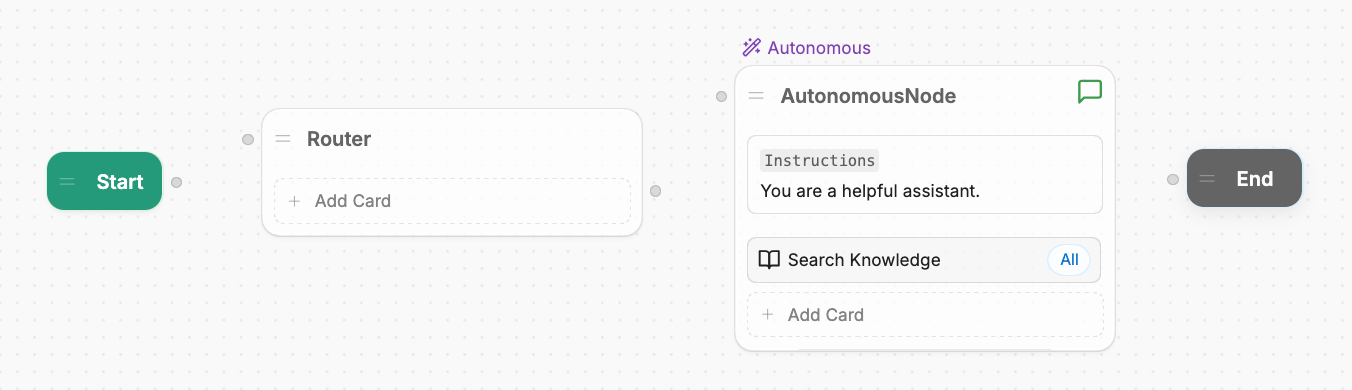
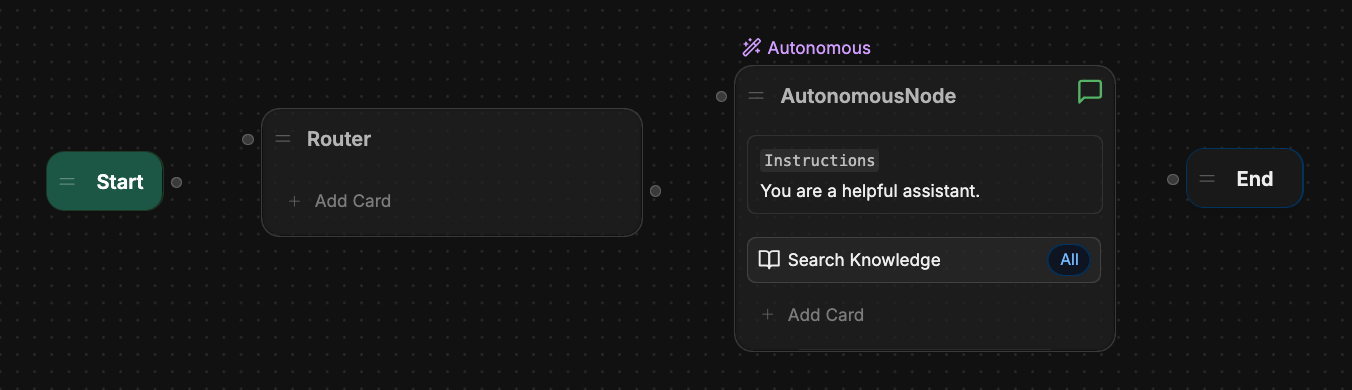
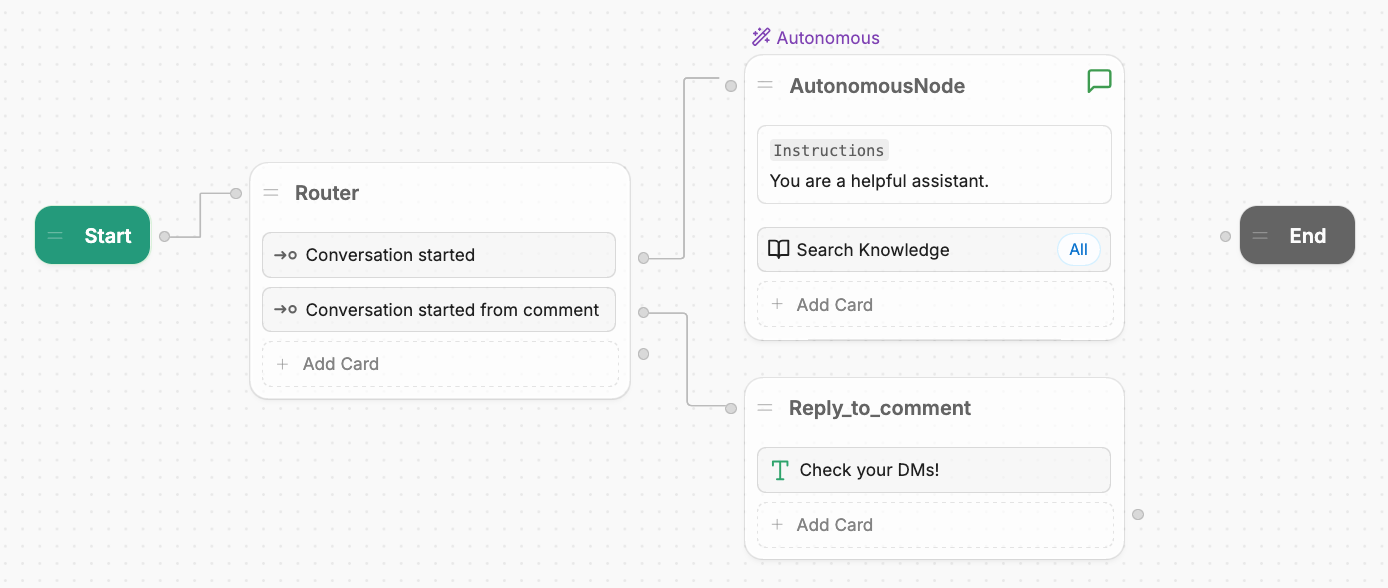
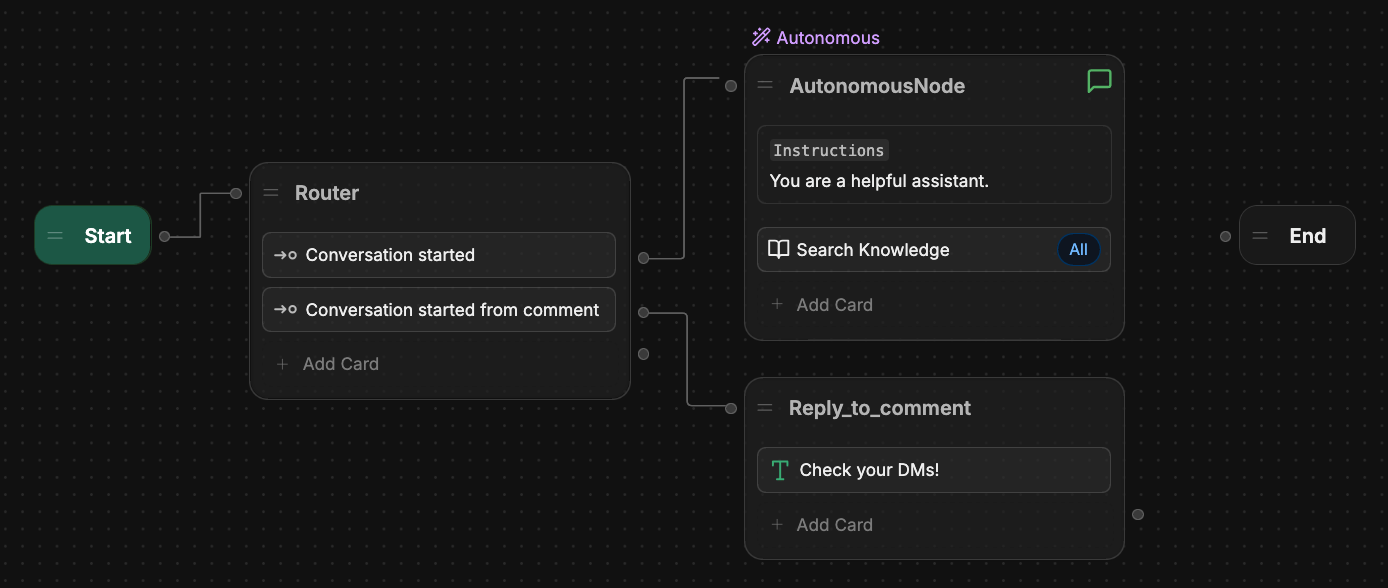
Rename the Node to `Router`, then move it between the [Start Node](/studio/concepts/nodes/introduction) and any other existing Nodes:
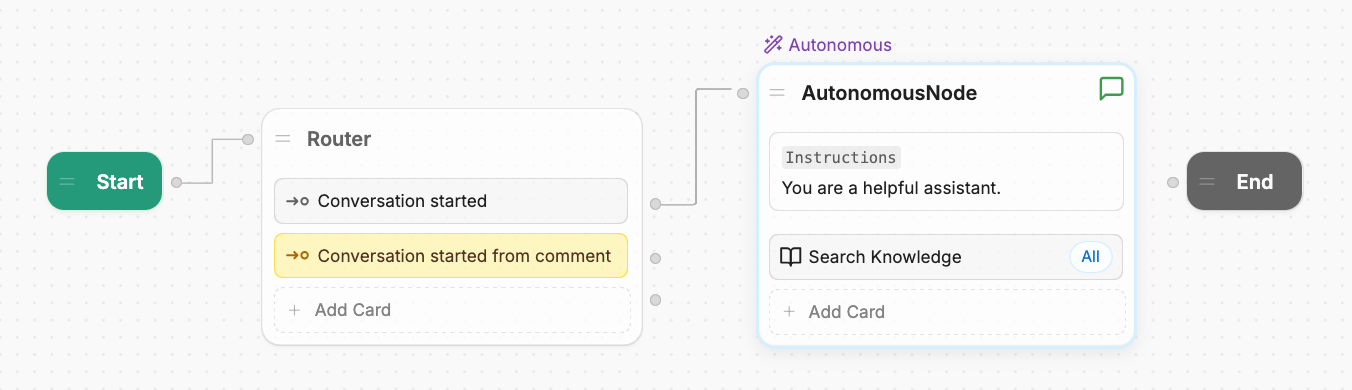
Add two [Expression Cards](/studio/concepts/cards/flow-logic#expression) to the `Router` Node.
Open the second Expression Card's [inspector](/studio/concepts/cards/introduction#configure-a-card). Next to the **Condition** field, toggle to disable generative AI.
Configure this Card for conversations started normally:
* In the **Label** field, paste in: `Conversation started`
* In the **Condition** field, paste in: `{{event.channel == 'channel'}}`
Open the first Expression Card's [inspector](/studio/concepts/cards/introduction#configure-a-card). Next to the **Condition** field, toggle to disable generative AI.
Configure this Card for conversations started from a comment reply:
* In the **Label** field, paste in: `Conversation started from comment`
* In the **Condition** field, paste in: `{{event.channel == 'commentReplies'}}`
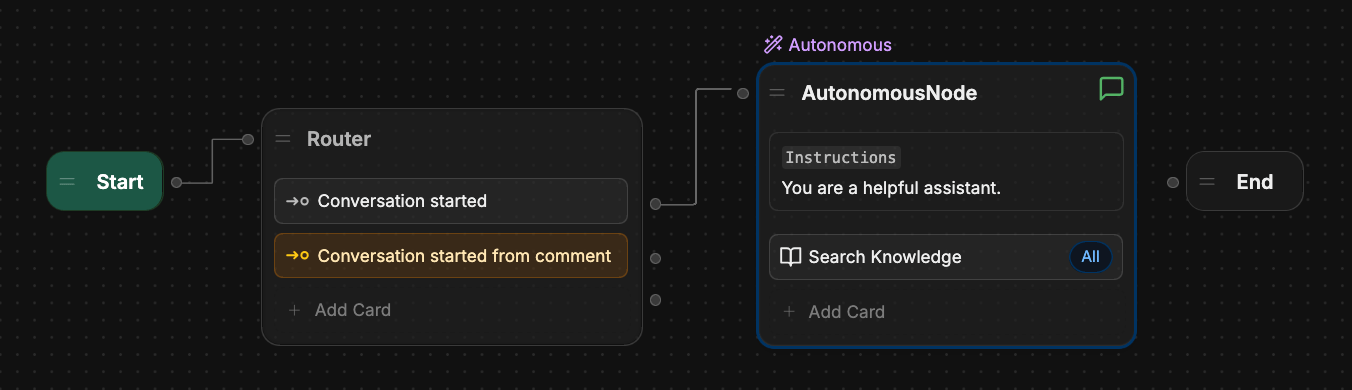
Attach the Start Node to the `Router` Node. Then, attach the `Conversation started` Expression Card to your regular conversation logic:
### Step 2: Reply to the user's comment
Next, add logic to reply to the user's comment. This lets them know that the bot will continue the conversation in a DM.
Add a new Node to your Workflow and rename it to `Reply_to_comment`.
Add a [Text Card](/studio/concepts/cards/send-messages#text) to the new Node.
Open the Text Card's inspector.
In the **Message to send** field, enter the message you want to reply to the user's comment. For example: `Check your DMs!`.
Attach the `Conversation started from comment` Expression Card to the `Reply_to_comment` Node:
### Step 3: Start a DM conversation from the comment
Finally, add logic to start a DM conversation whenever a user leaves a comment.
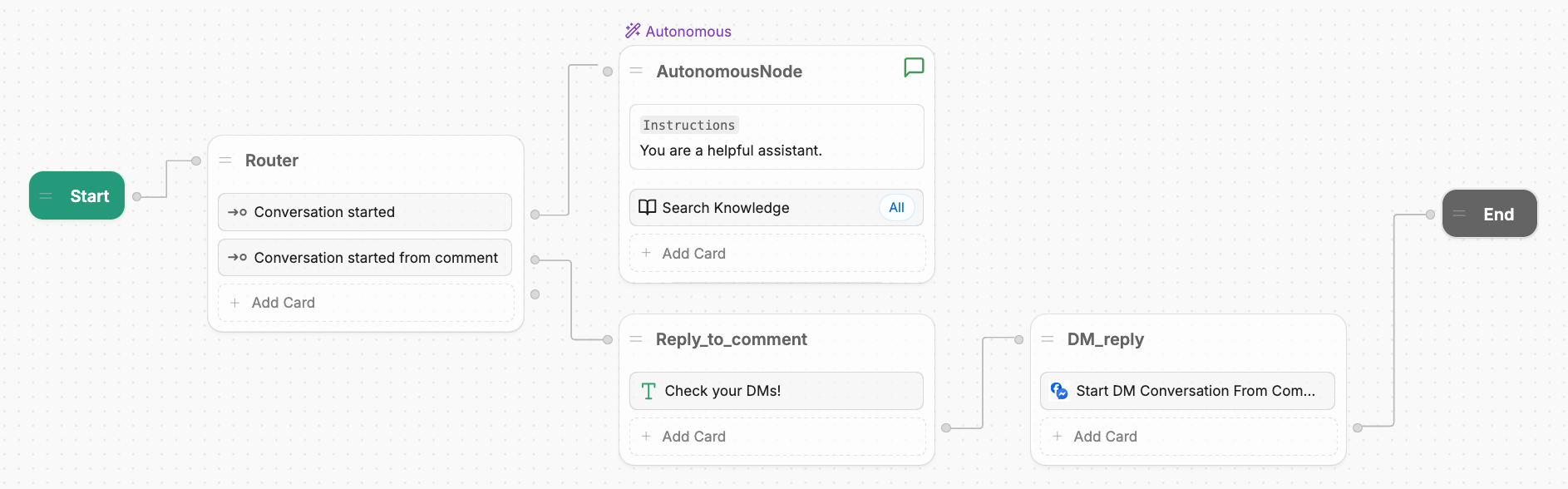
Add a new Node to your Workflow and rename it to `DM_reply`.
Add the [Start DM Conversation from Comment](#start-dm-conversation-from-comment) Card to the new Node.
Open the Start DM Conversation from Comment Card's inspector.
* In the **Comment ID** field, paste in: `{{event.payload.commentId}}`
* In the **Message** field, enter the first message you want to send the user in a DM. For example: `Hey! Received your comment.`
If you want to send the user's original comment back to them, you can add `{{event.payload.text}}` to the **Message** field.
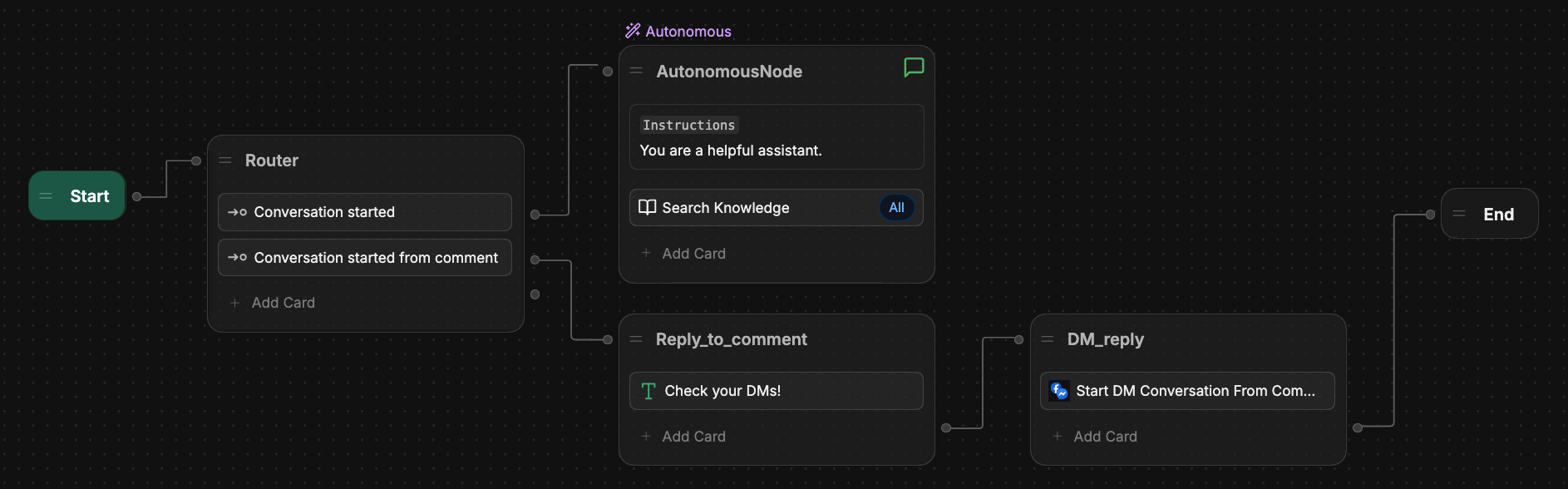
Attach the `Reply_to_comment` Node to the `DM_reply` Node. Then, attach the `DM_reply` Node to the [End Node](/studio/concepts/nodes/introduction#end):
When a user comments on a post, your bot will now:
* Reply to their comment, letting them know to check their DMs
* Continue the conversation in a DM
You can further modify your Workflow depending on your desired behaviour.
***
## Cards
{/* vale off */}
Here's a reference for all [Cards](/studio/concepts/cards/introduction) available with the integration:
### Get or Create a Conversation
{"Proactively create a conversation from a bot"}
{"The conversation object fields"}
{"The Messenger user ID of the user in the conversation"}
{"The Messenger ID of the comment for which the private-reply conversation should be created"}
{"The Botpress ID of the created conversation"}
### Get or Create a User
{"Proactively create a user from a bot"}
{"The name of the user"}
{"The URL of the user profile picture"}
{"The email of the user"}
{"The user object fields"}
{"The Messenger ID of the user"}
{"The Botpress ID of the created user"}
### Start DM Conversation from Comment
{"Start a DM conversation from a comment"}
{"The ID of the comment to start the conversation from"}
{"The message to send to the user"}
This Card has no output.
***
## Tags
You can read [event tags](/studio/guides/advanced/event-properties#param-tags) to get information about an active Messenger conversation:
### Message ID
To get the Messenger ID of a message:
```js theme={null}
event.tags.message["messenger:id"]
```
### Recipient ID
To get the Messenger ID of the recipient:
```js theme={null}
event.tags.message["messenger:recipientId"]
```
### Sender ID
To get the Messenger ID of the sender:
```js theme={null}
event.tags.message["messenger:senderId"]
```
### Conversation ID
To get the Messenger ID of the conversation:
```js theme={null}
event.tags.conversation["messenger:id"]
```
### User ID
To get the Messenger ID of the user:
```js theme={null}
event.tags.user["messenger:id"]
```