> ## Documentation Index
> Fetch the complete documentation index at: https://botpress-charmenta-pr-693.mintlify.site/llms.txt
> Use this file to discover all available pages before exploring further.
# Monitor performance
You can monitor your agent's performance in the ** Monitor** section of your agent's menu. Here's a breakdown of each sub-section:
## Conversations
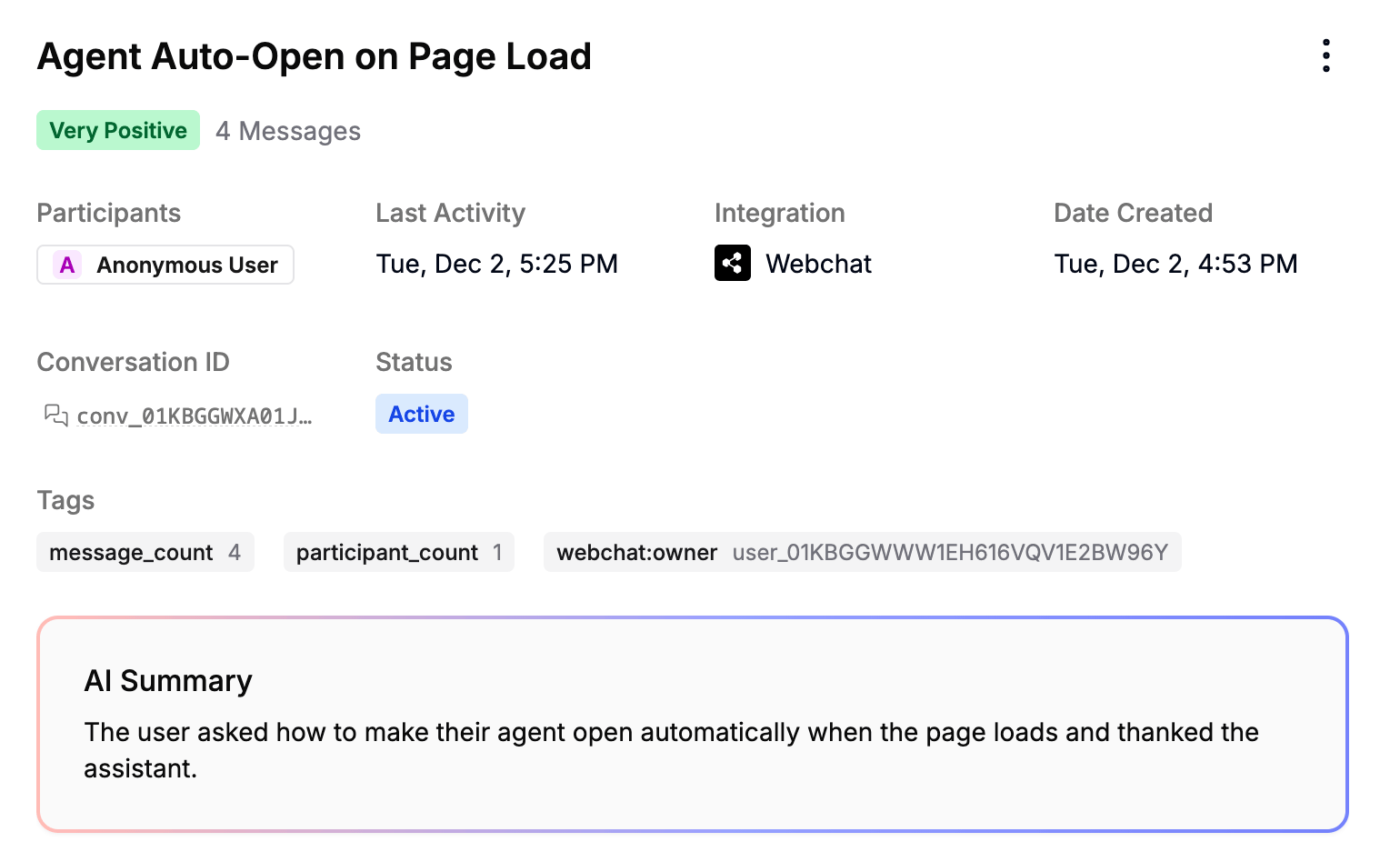
You can view a list of all your agent's conversations in the **Conversations** sub-section. Just select any conversation to view its details:
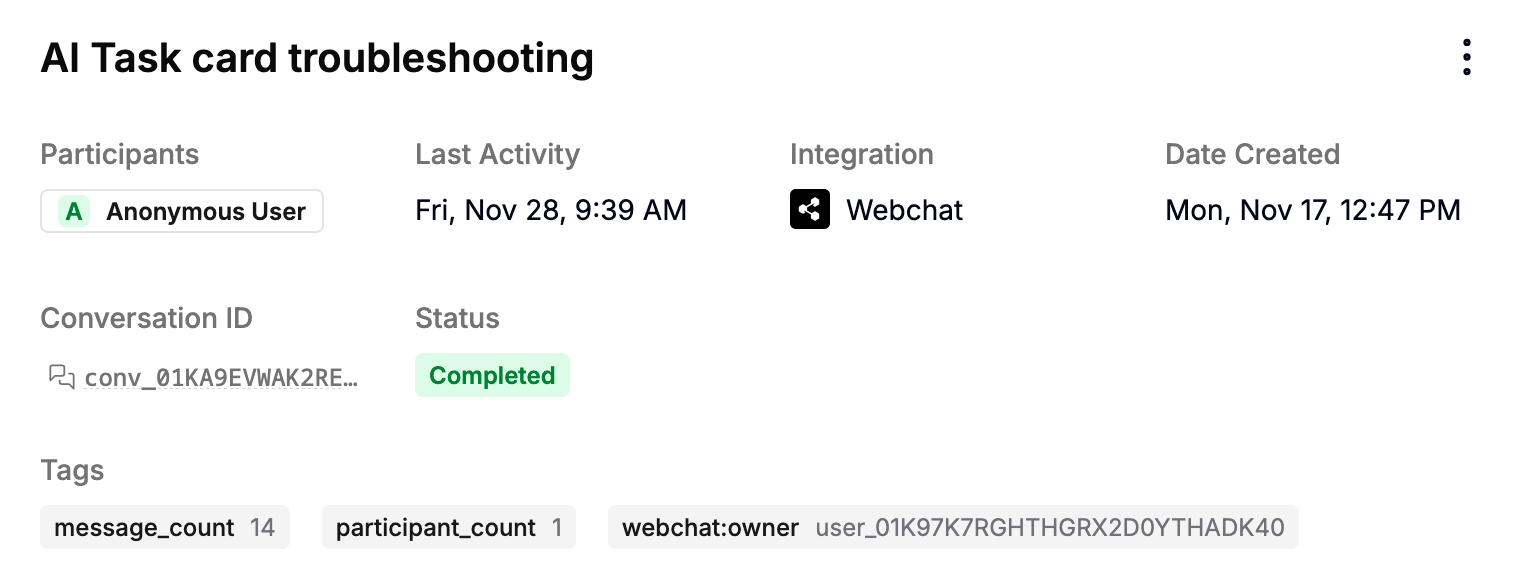
 In this menu, you can access:
* The conversation's participants
* Its conversation ID
* Which integration it occurred on
* Its start date and last activity
* Its current status
* Any tags associated with it
### Message data
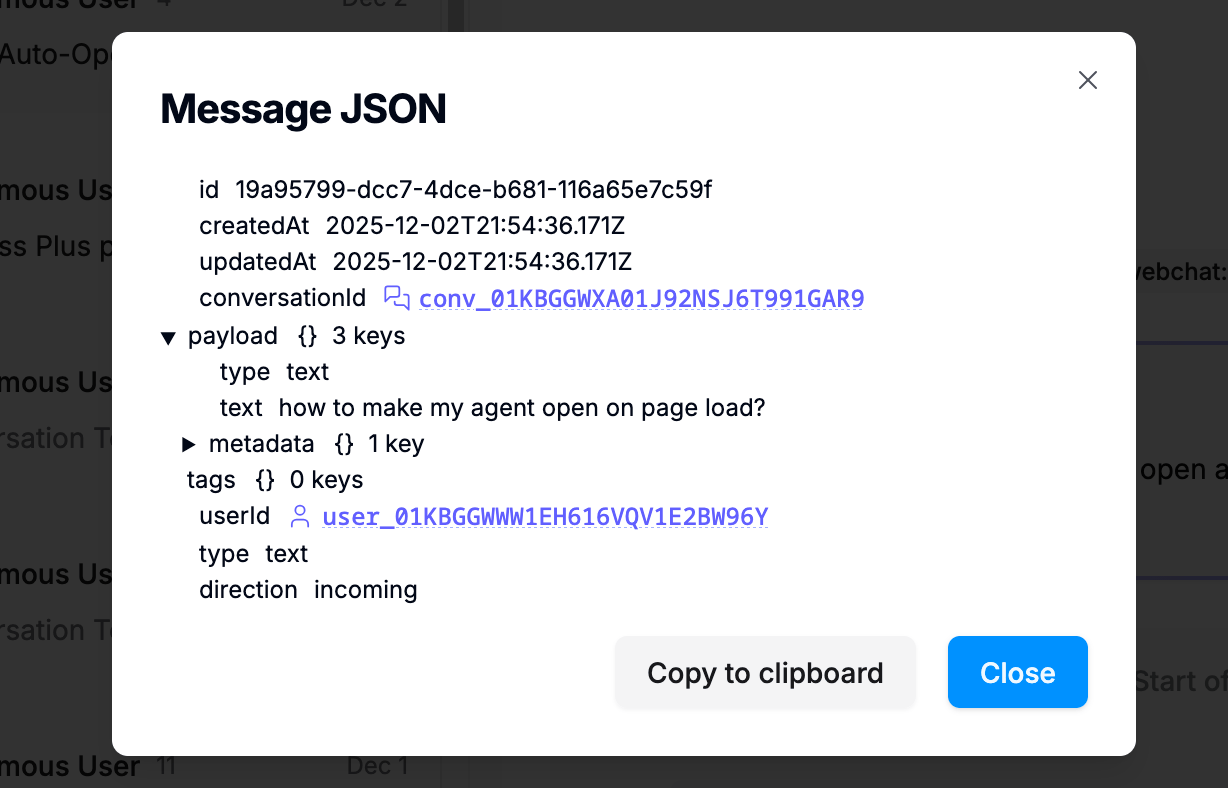
You can select any message in the conversation to get a detailed JSON representation of all its associated data:
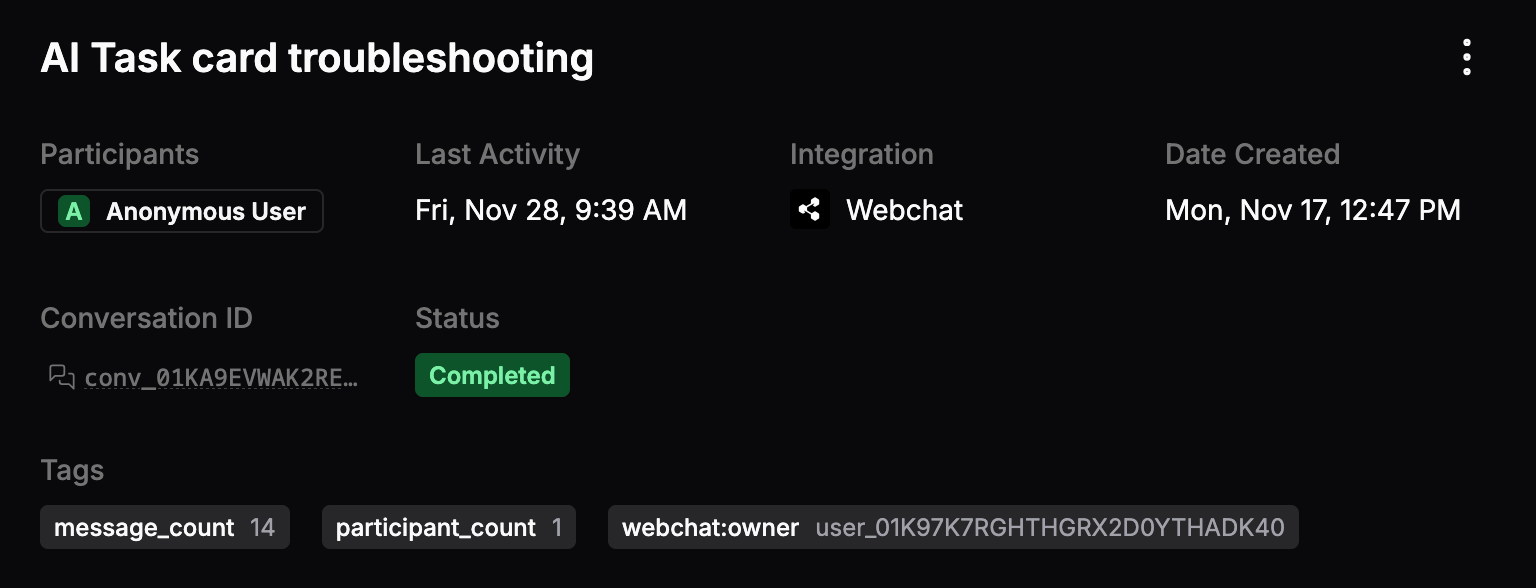
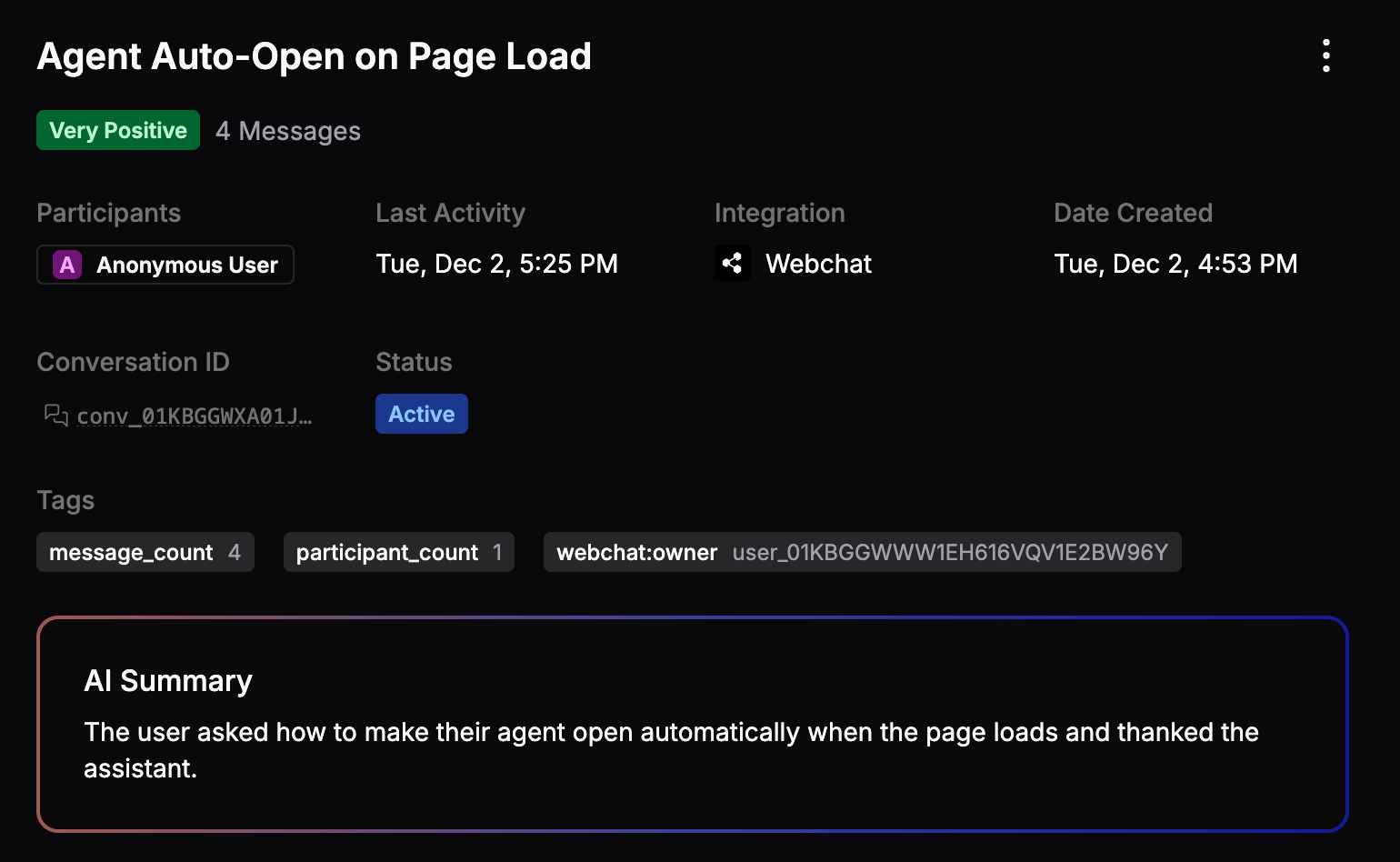
In this menu, you can access:
* The conversation's participants
* Its conversation ID
* Which integration it occurred on
* Its start date and last activity
* Its current status
* Any tags associated with it
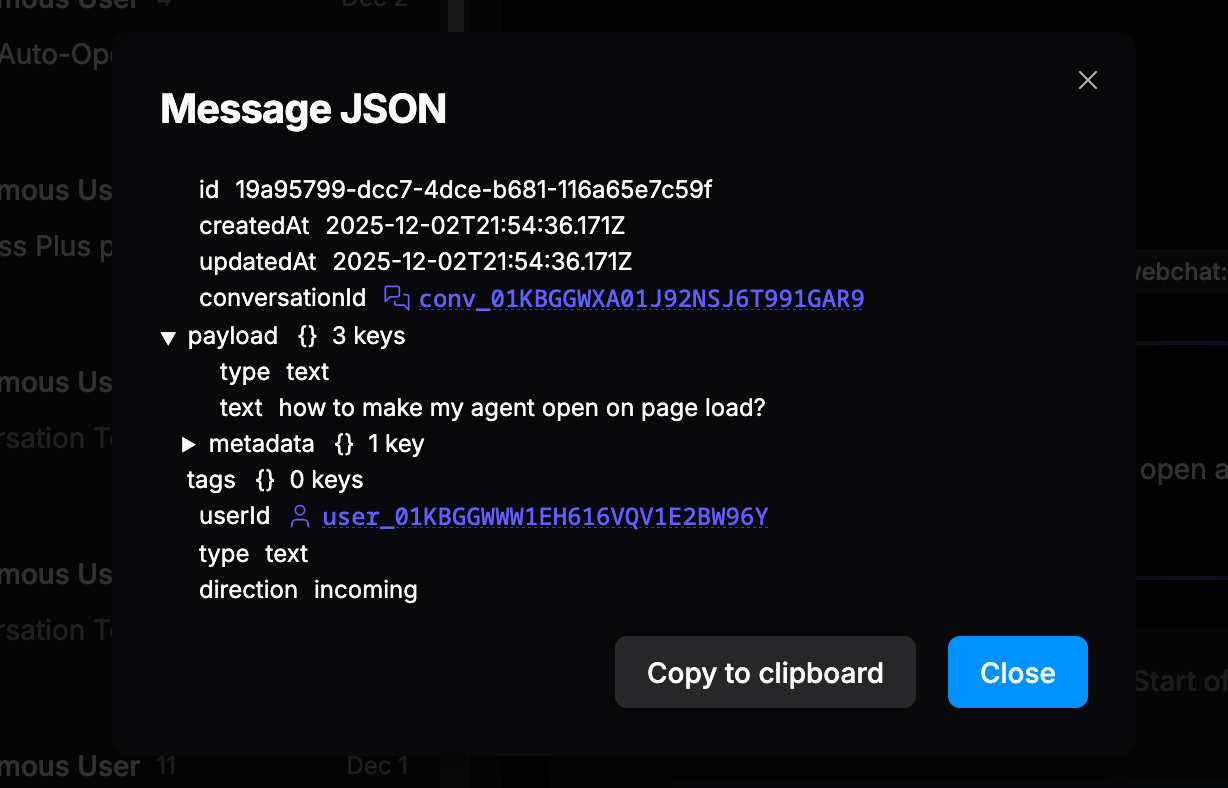
### Message data
You can select any message in the conversation to get a detailed JSON representation of all its associated data:
 ### AI insights {BETA}
Select ** Enable AI** to enable sentiment analysis and AI summaries for incoming conversations:
### AI insights {BETA}
Select ** Enable AI** to enable sentiment analysis and AI summaries for incoming conversations:
 ***
## Users
You can view all your agent's unique users in the **Users** sub-section. Select any user ID to open [conversations](#conversations), [events](/get-started/manage-your-agent/inspect#events), or [logs](/get-started/manage-your-agent/inspect#logs) associated with that user.
## Analytics
You can view detailed analytics about your agent's performance in the **Analytics** sub-section:
***
## Users
You can view all your agent's unique users in the **Users** sub-section. Select any user ID to open [conversations](#conversations), [events](/get-started/manage-your-agent/inspect#events), or [logs](/get-started/manage-your-agent/inspect#logs) associated with that user.
## Analytics
You can view detailed analytics about your agent's performance in the **Analytics** sub-section:
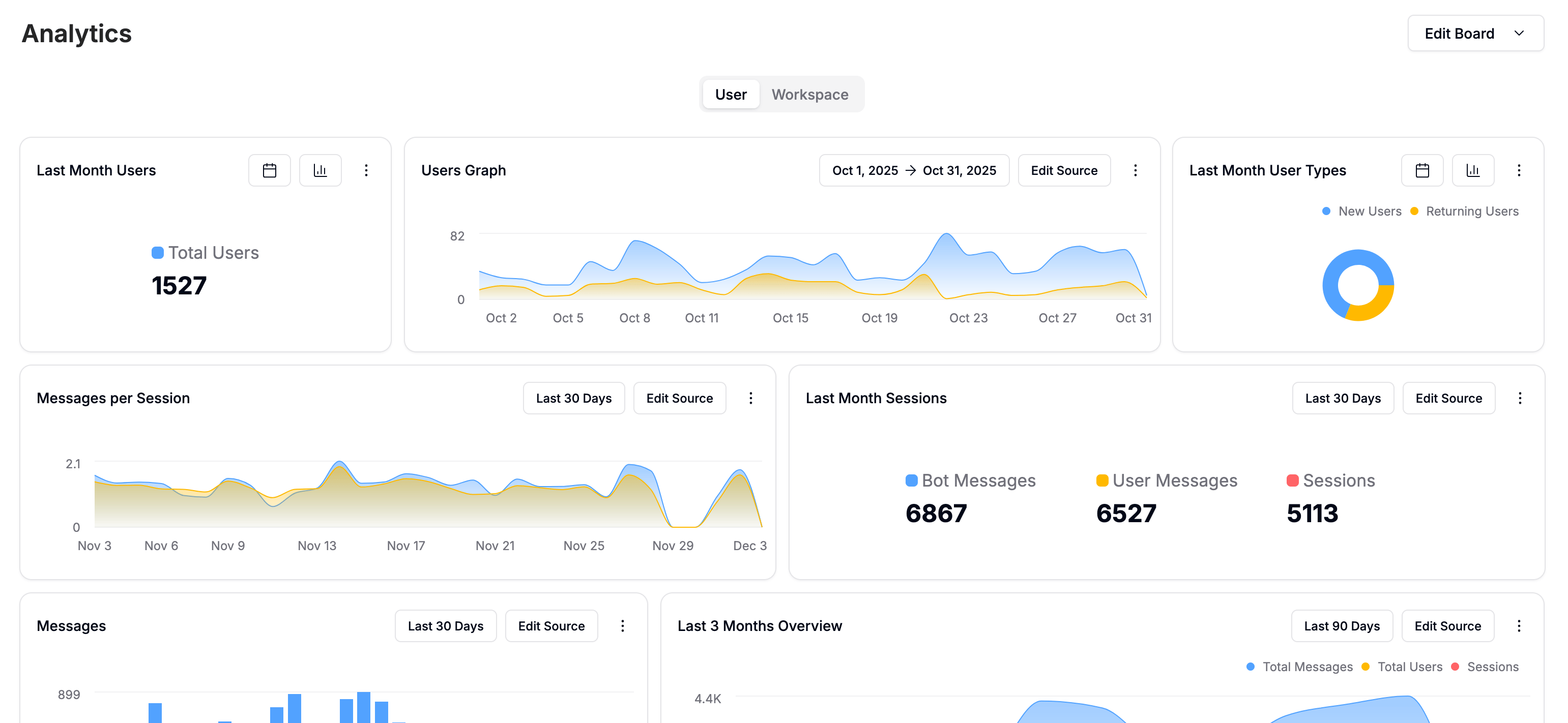
 For any tile, you can:
* Select the current range to modify it
* Select **Edit Source** to change which data the tile displays
* Select to access additional options:
* **Show/Hide Legend**
* **Type**
* **Duplicate**
* **Delete**
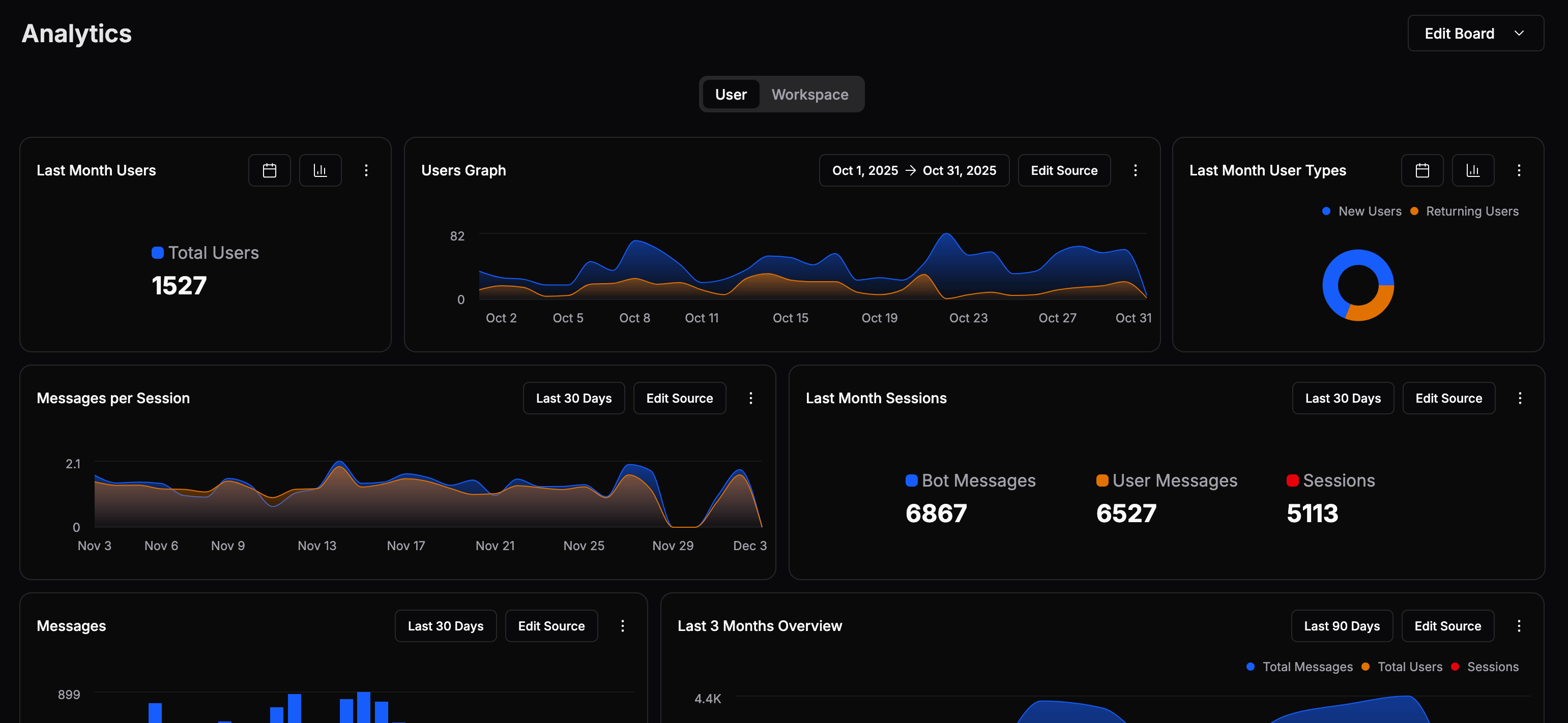
For any tile, you can:
* Select the current range to modify it
* Select **Edit Source** to change which data the tile displays
* Select to access additional options:
* **Show/Hide Legend**
* **Type**
* **Duplicate**
* **Delete**